
Creating a family tree does not always require specialized genealogy software. For a small family-history project, a well-designed family tree template in Word can be a simple and familiar way to organize names, relationships, dates, and photographs in one printable chart.
Microsoft Word is particularly useful when you want something that can be edited easily and shared with relatives. You can start with a ready-made template, customize the layout, add photographs, and save the finished tree as a Word document or PDF.
The important part is choosing a template that actually fits your family history. A layout that works beautifully for three generations may become cramped when you add more branches. Likewise, a photo-heavy design needs more space than a simple chart containing names and dates.
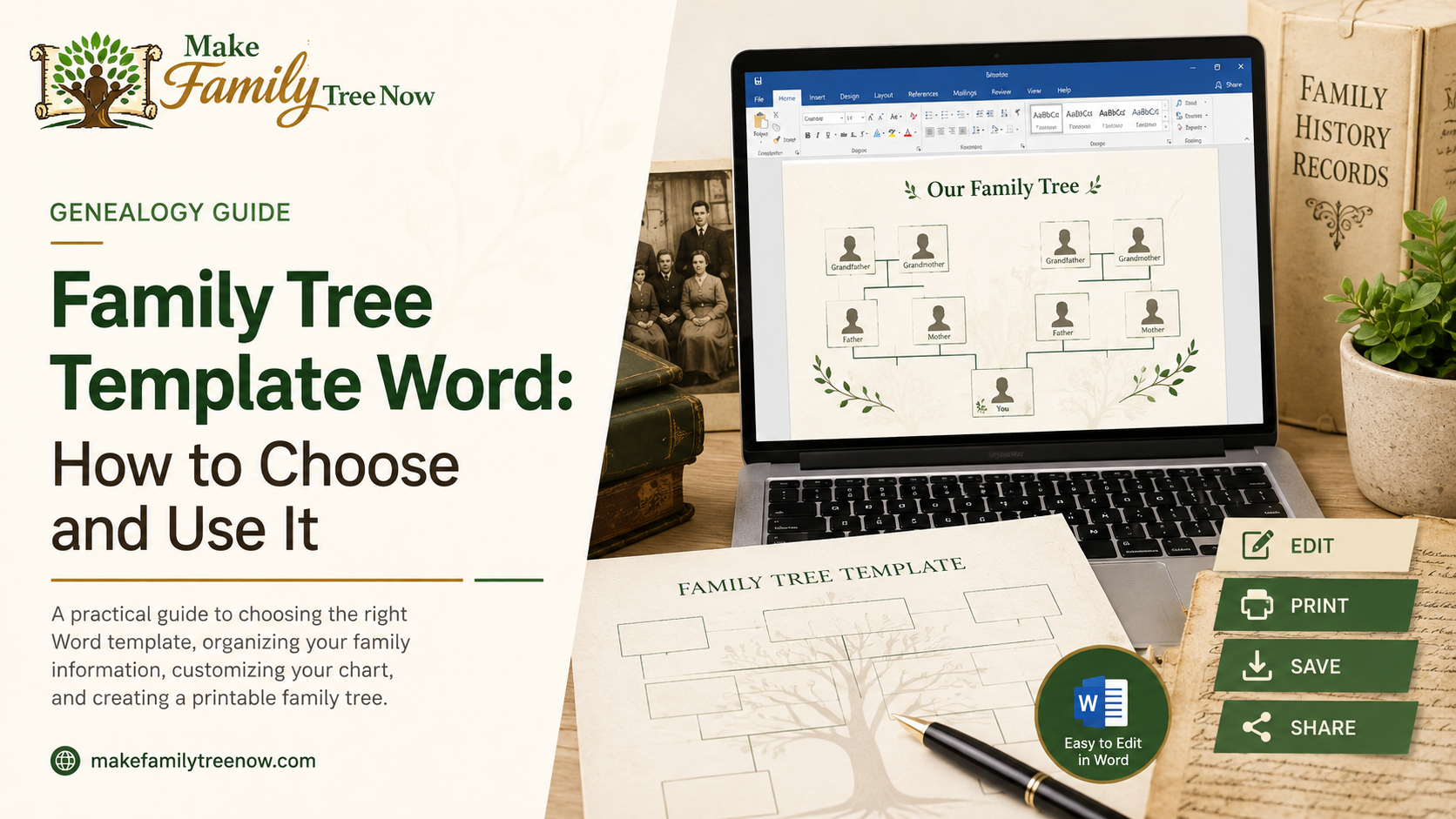
This guide explains how to choose the right Word template, how to customize it without creating a formatting mess, and when it makes sense to use a dedicated family tree tool instead.
Is Microsoft Word a Good Choice for a Family Tree?
For many small and medium-sized projects, it is.
Word is familiar, flexible, and relatively easy to edit. It can work particularly well for:
- Three- or four-generation family trees
- School or family-history projects
- Printable family charts
- Family trees with photographs
- Family reunion displays
- Projects that another relative may need to edit
You can create the structure using tables, SmartArt, text boxes, shapes, or a combination of these elements.
The limitation becomes more noticeable as the family tree grows. A large research project with many branches, photographs, source records, and frequently changing information can be difficult to maintain manually.
If your family history is still actively growing, a dedicated family tree maker can be a better place to organize the underlying information, while Word can still be used later to create a printable presentation.
How to Choose the Right Family Tree Template in Word
There is no single template that works for every family.
Before choosing one, think about what you want the finished chart to communicate and who will be looking at it.
Start With the Number of Generations
Three generations are usually comfortable on a standard page and are often enough for a school project, family display, or simple introduction to your family history.
Four generations provide more context but require more careful spacing. If you want to show five or more generations, you may need a larger page, multiple charts, or a different type of genealogy layout.
More boxes do not automatically make a better family tree. A chart with fewer generations and readable names is often much more useful than a complete chart where everything is too small to follow.
If you are unsure how generations are normally arranged, a family tree generations chart can help you decide what structure makes the most sense.
Think About the Direction of the Chart
Family trees can be arranged vertically, horizontally, or around a central person.
A vertical design may place ancestors above and descendants below. A horizontal layout gives branches more room to spread across the page. Some designs place one person or couple at the center and arrange relatives around them.
Think about the story you want the chart to tell.
If you are researching your ancestors, you may want the layout to emphasize earlier generations. If you are creating a tree for children or grandchildren, a descendant-focused design may be easier to understand.
Check Page Size and Orientation
Page setup matters more than many people expect.
A portrait template may work for a narrow family branch, but a landscape layout often gives a larger family more room to spread horizontally.
Before editing the template, check:
- Paper size
- Portrait or landscape orientation
- Margins
- Number of pages
- Printable area
- Space between generations
Changing these settings after you have already arranged dozens of boxes can move objects and disrupt connector lines.
Decide Whether Photographs Are Important
Photographs can turn a basic genealogy chart into something much more personal.
If you want to include portraits, choose a template that has enough space for images without forcing the names and relationships into tiny boxes.
Use good-quality copies of photographs and keep the original files stored separately. If you are looking for creative ways to combine photographs with family relationships, explore these family tree picture ideas or learn more about adding photos to a family tree.
Check How the Template Is Built
Two templates may look almost identical while behaving very differently in Word.
A template might rely on:
- Tables
- Text boxes
- Shapes
- SmartArt
- Grouped objects
- Image placeholders
- Connector lines
Templates using tables can be easier for beginners, while shape-based designs generally offer more freedom but require more careful editing.
Understanding the structure before you start can save you from rebuilding half the chart later.
What Information Should You Gather First?
You do not need a complete genealogy archive before starting your family tree.
Begin with information you can verify and expand the chart as your research develops.
Depending on your project, you may want to collect:
- Full names
- Birth or maiden surnames
- Birth and death dates or years
- Places of birth or residence
- Marriage or partnership information
- Parent-child relationships
- Photographs
- Short family-history notes
- Sources for important facts
If something is unknown, leave it blank or mark it as uncertain.
A blank space is better than an incorrect date or relationship that later gets copied into other family records.
For larger projects, keep your research notes separately. The Word template should act as the presentation layer rather than becoming the only place where your family-history information exists.
How to Use a Family Tree Template in Word
Once you have selected the template and gathered your information, the actual editing becomes much easier.
1. Save the Original Template
Do not edit the only copy.
Save a new working version first. If something goes wrong with the formatting, you will still have the untouched template to return to.
A simple file naming system can also help:
Family-Tree-Working-Copy.docx
Later, you might create separate versions for printing and sharing.
2. Set Up the Page Before Adding Names
Choose the paper size, orientation, and margins before you start positioning people.
This is especially important for a family tree because changing the page dimensions later can shift shapes and alter the spacing between generations.
If you already know the tree will be printed in landscape, set landscape orientation at the beginning rather than halfway through the project.
3. Start With the Main Person or Family
Begin with the central person, couple, or family unit.
Then work outward through the relationships.
For an ancestor-focused tree, you might move through parents and grandparents first. For a descendant chart, you may begin with children and grandchildren.
Starting small makes it easier to identify a relationship mistake before it affects the entire layout.
4. Replace the Sample Information Carefully
Whenever possible, replace the sample text rather than deleting the entire box.
Some templates depend on table cells, paragraph spacing, anchors, or grouped objects to maintain their layout. Removing those elements can cause unexpected movement.
Try to keep the information format consistent throughout the chart. For example, decide whether dates will appear as years or full dates and use the same approach wherever practical.
5. Duplicate Existing Boxes When Adding People
If your template does not contain enough boxes, duplicate an existing one rather than creating every new box manually.
This helps preserve:
- Font size
- Box dimensions
- Spacing
- Alignment
- Borders
- Colors
After adding a new person, check the surrounding relationships. A new box can affect more than just the space immediately around it.
6. Add Connectors After Positioning the Boxes
It is usually easier to arrange the people first and add relationship lines afterward.
Once the boxes are positioned, connect parents, children, spouses, or other relationships. If you later move a box, check the connector again.
For templates containing many floating objects, Word’s alignment, grouping, and Selection Pane tools can make editing considerably easier.
Choosing Between Different Word Template Styles
The way a template is built affects how easy it will be to customize.
Table-Based Templates
Tables provide a structured grid and are generally easy to align.
They work well for straightforward family trees, but complex relationships can make merged cells and irregular layouts difficult to manage.
Best for: simple family trees and school projects.
SmartArt Templates
SmartArt can quickly create a basic hierarchy and is convenient when the family structure is relatively simple.
Its main drawback is that Word may automatically rearrange elements when you add or remove people.
Best for: small, straightforward family hierarchies.
Text Box and Shape Templates
Shapes give you more control over placement and are useful when photographs and custom designs are important.
They do require more attention, particularly when objects overlap or connector lines need to be adjusted.
Best for: customized family trees and photo-based displays.
Printable and Editable Templates
If you want a design that is already structured but still allows customization, compare different printable and editable family tree templates.
Pay attention to the actual page size and the amount of space available for each person rather than choosing a template simply because it looks attractive in the preview.
Adding Photographs Without Overcrowding the Chart
Photographs can make a family tree much more engaging, but they should support the information rather than dominate it.
You do not need an image for every person. If a photograph is unavailable, leaving the space blank is better than using an image whose identity has not been confirmed.
For a cleaner result:
- Use copies instead of editing original photographs
- Keep image dimensions consistent
- Crop portraits similarly
- Keep faces clearly visible
- Avoid filling every available space
- Check image quality before printing
Store the original photographs separately so they remain available for future projects.
How Many Generations Should You Include?
The answer depends on the purpose of the family tree.
A three-generation chart is often the easiest to read. Four generations can work well with a larger page or carefully planned layout.
Beyond that, you should consider whether putting everything on one page is actually helpful.
Ask yourself:
- Who will use this chart?
- Will it be printed or viewed digitally?
- Are photographs necessary?
- Do dates and places need to appear?
- Would separate charts be easier to understand?
Sometimes the best solution is not a bigger template but two smaller, more readable family trees.
Common Problems With Word Family Tree Templates
Even a good template can become difficult when the editing process gets rushed.
Boxes Move Unexpectedly
Floating objects can respond to anchors, text wrapping, margins, and nearby content.
To reduce unexpected movement:
- Set the page layout first
- Avoid repeatedly changing font sizes
- Use alignment tools
- Group related objects where appropriate
- Save different versions as you work
The Text Becomes Too Small
Trying to fit more generations into a fixed page often creates an unreadable chart.
Instead of continually reducing the font, consider:
- A larger paper size
- Landscape orientation
- Fewer generations
- Multiple pages
- Less information inside each box
The goal is not to fit everything. The goal is to make the family relationships easy to understand.
Connector Lines Become Misaligned
This is particularly common with templates made from floating shapes.
Position the main boxes first, then create the connections. After every significant layout change, trace the lines and make sure each one still represents the intended relationship.
The Printed Version Looks Different
Always check Print Preview before printing.
Look for:
- Cut-off text
- Unexpected page breaks
- Overlapping objects
- Missing images
- Uneven margins
- Very small text
- Lines extending beyond the printable area
A document can look perfect while editing and still need adjustments when converted to paper or PDF.
When Should You Use a Family Tree Maker Instead?
Word is a good choice when your goal is a finished chart.
It becomes less practical when the family history is an ongoing research project.
A dedicated family tree maker may be more suitable if you need to:
- Add relatives regularly
- Research several branches
- Organize source records
- Manage many photographs
- Collaborate with relatives
- Track uncertain information
- Maintain a large family history over time
If you are starting from scratch, a free family tree maker can help you organize the relationships digitally before deciding how you want the final chart to look.
How to Save and Share Your Finished Family Tree
Keep the editable DOCX as your master file.
Once the design has been reviewed, export a PDF for relatives who only need to view or print it. PDF is usually more reliable for preserving the final layout across different computers and printers.
The Word version is more appropriate when another family member needs to continue editing the chart.
If you plan to share your family history with several relatives, you can also review this guide on sharing a family tree with relatives for practical considerations around editable and view-only versions.
Review the Chart Before You Share It
Before printing or sending the finished family tree, take a step back and review it as if you were seeing it for the first time.
Start with the central person and follow each branch outward. Then choose someone at the edge of the chart and trace the relationships back toward the center.
Check:
- Names and spellings
- Birth or maiden surnames
- Dates and places
- Parent-child relationships
- Partner relationships
- Repeated names
- Photograph identification
- Connector lines
- Font size
- Page breaks
- Source notes
Most importantly, make sure the design does not make uncertain information look confirmed.
If you are still unsure about a date or relationship, label it as uncertain or leave it blank until you have better evidence.
Keep Your Research Behind the Presentation
A family tree is a visual summary of family history. It is not necessarily the complete research record.
Important information may come from birth records, census documents, marriage records, photographs, family interviews, letters, diaries, or other historical sources.
Keep those supporting materials separately from the presentation chart.
That way, if new evidence changes something later, you can update the family tree without losing the research behind it.
Final Thoughts
Choosing a family tree template in Word is really about choosing a format that suits the story you want to tell.
Think about the number of generations, page orientation, photographs, available space, and how the finished chart will be used before you begin editing. Save the original template, position the main boxes carefully, add connectors only after the structure is stable, and review everything before printing or sharing.
For a small or mostly finished family tree, Word can be an effective and accessible option. If your project is becoming a larger, continuously updated family history, a dedicated family tree maker may give you more flexibility.
The best family tree is not necessarily the one with the most names or the most elaborate design. It is the one that people can read, understand, verify, and return to when the family story grows.
Frequently Asked Questions
What should I look for in a family tree template for Word?
Choose a template with enough space for your intended number of generations, readable text, a suitable page orientation, and room for photographs or dates if you need them.
Is a three-generation or four-generation template better?
Three generations are generally easier to read, while four generations can provide more historical context. The right choice depends on your page size and the amount of information you want to include.
Can I add more people to a Word family tree template?
Yes. Duplicating an existing formatted box is usually easier than creating a new one from scratch. Just remember to check the spacing and connector lines afterward.
Can I add photographs to a Word family tree?
Yes. Use copies of your photographs, keep their dimensions consistent, and make sure every photograph has been correctly identified before adding it to the chart.
Should I use tables, SmartArt, or shapes?
Tables work well for structured layouts, SmartArt is useful for simple hierarchies, and shapes offer greater design flexibility. Choose the method that matches the complexity of your family tree.
Should I save my family tree as Word or PDF?
Ideally, save both. Keep the DOCX as your editable master and export a PDF for printing and general sharing.
What should I do if some family information is missing?
Leave it blank or mark it as unknown. Avoid guessing, particularly with dates and relationships that other relatives may later use as family-history information.
When should I use a family tree maker instead of Word?
Word works well for a small or mostly finished chart. A dedicated family tree maker becomes more useful when you are researching continuously, managing several branches, or adding new information regularly.
